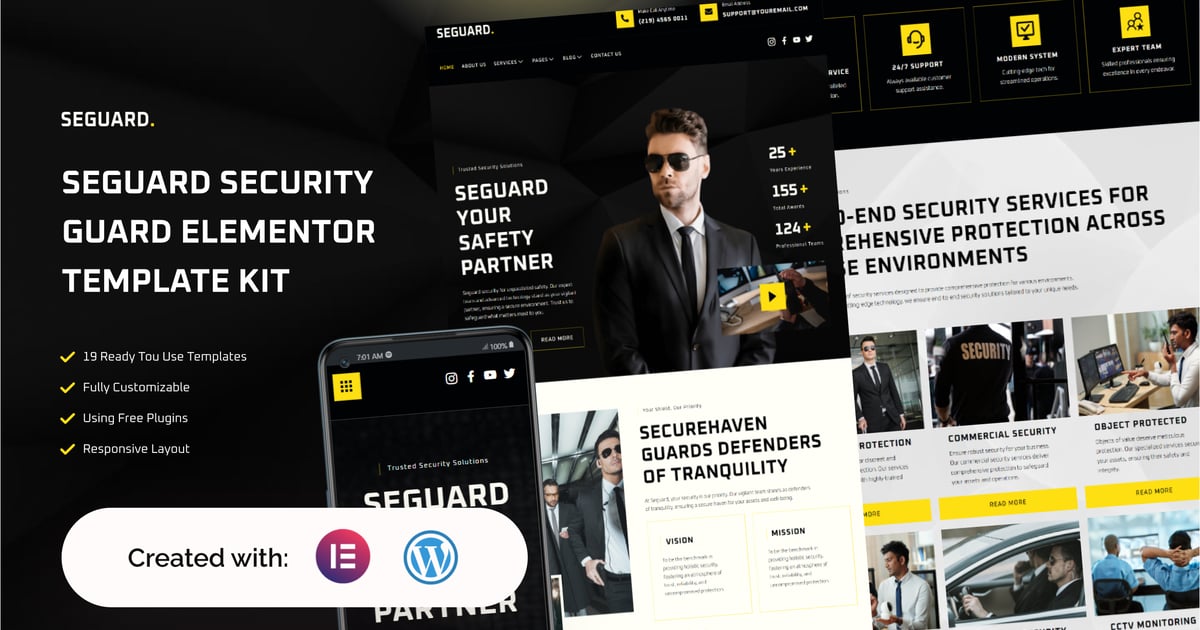
Seguard is a Security Guard Service template kit exclusively designed for WordPress and Elementor. In an era where security is paramount, Seguard provides a robust platform for security companies, guard services, and professionals to establish a strong online presence.
Seguard capitalizes on the simplicity of Elementor and the reliability of WordPress, ensuring that users, whether tech-savvy or not, can effortlessly build and customize their websites. This template kit is equipped with features tailored to the needs of security guard services, offering a seamless platform to highlight services, expertise, and the commitment to safety.
The kit features professional design elements, strategic call-to-action sections, and interactive modules that resonate with the vigilant nature of security services. From dynamic service showcases to responsive contact forms, every detail is carefully curated to reflect the trust and reliability associated with your security company.
Suitable For:
Security Services
Guard Protection
Security Website
Compatible with Free Plugins (Elementor Pro not required)
Unique & Clean Design
Modern design based on design system
19 Ready to use templates
Fully Responsive Layout
Fully Customizable
Cross Browser Compatibility: Chrome, Firefox, Safari, Opera
Templates Include:
Global Theme Style
About Us
Services
Services Detail
Pricing
Our Team
Carreer
Carreer Detail
Testimonial
404 Pages
Single Post
Contact Us
Form Single Post (MetForm)
Form Message Contact Us(MetForm)
Form CTA Footer(MetForm)
Required Plugin(included):
Elementor
Elementskit Lite
MetForm
Gum Elementor Addon
How to Use Template Kits :
Download your kit file from Envato and do not unzip it. If you use Safari browser you may need to ensure “Open safe files after downloading” is disabled in the browser preferences.
Go to Settings > Permalinks and ensure Post Name is selected
Go to Appearance > Themes > Add New and ensure Hello Elementor is installed and activated. This will prompt you to install Elementor if you haven’t already.
Before importing a template, ensure the Install Requirements button is clicked to activate required plugins
Go to Plugins and ensure Elementor and Envato Elements are installed and at the latest version. If your kit requires Elementor Pro, it must be installed now and connected to your account.
Go to Pages and create a new page and click Edit with Elementor
Go to Elements > Installed Kits and click Upload Template Kit Zip (or click your kit to view it)
Check for the orange banner at the top and click Install Requirements to load any plugins the kit uses. https://envato.d.pr/ughD8Q
Click import on the Global Kit Styles first. This will setup the site settings.
Click Import on one template at a time in the order shown. These are stored in Elementor under Templates > Saved Templates and are re-used from here.
Creating pages
Go to Pages and create a new page and click Edit with Elementor
Click the gear icon at lower-left of the builder to view page settings and choose Elementor Full Width and hide page title
Click the gray folder icon to access My Templates tab and then Import the page you’d like to customize.
The home page is set under Settings > Reading by selecting Static Front Page.
If you have Elementor Pro, headers and footers are customized under Templates > Theme Builder.
[Detailed Guide](https://help.market.envato.com/hc/en-us/articles/900000842846-How-to-use-the-Envato-Elements-WordPress-Plugin-v2-0")
For further support, go to Elementor > Get Help in WordPress menu.
How to Import Metforms. If you have Elementor Pro, skip install of Metform and form blocks.
Import the metform block templates
Import the page template where the form appears and right-click to enable the Navigator
Locate and select the Metform widget and click Edit Form. Choose New, then Edit Form. The builder will appear
Click ‘Add Template’ grey folder icon.
Click ‘My Templates’ tab.
Choose your imported metform template, then click ‘Insert’ (click No for page settings).
Once the template is loaded, make any desired customizations and click ‘Update & Close’ The form will appear in the template
Click Update
Setup Global Header and Footer in ElementsKit. If you have Elementor Pro, headers and footers may be customized under Theme Builder.
Import the header and footer template
Go to ElementsKit > Header Footer and click Add New (if prompted with a wizard, you may click Next through it without taking any action)
Title the header, leave Entire Site selected and toggle Activation to On
Click the gray Edit Content button to load the builder
Click the gray folder icon and select the header template to import, select your menu in the nav element and click Update.
Repeat for Footer
This Template Kit uses demo images from Envato Elements. You will need to license these images from Envato Elements to use them on your website, or you can substitute them with your own.
https://elements.envato.com/collections/DF7HLU5VYQ
Explore more high-quality resources in our Graphics & Illustrations library, and pair them with curated Graphic Templates and Web & Site Templates for your digital creations.